Pixflow Libraries
Unlock 353 Bricks layouts and components with a subscription
Details
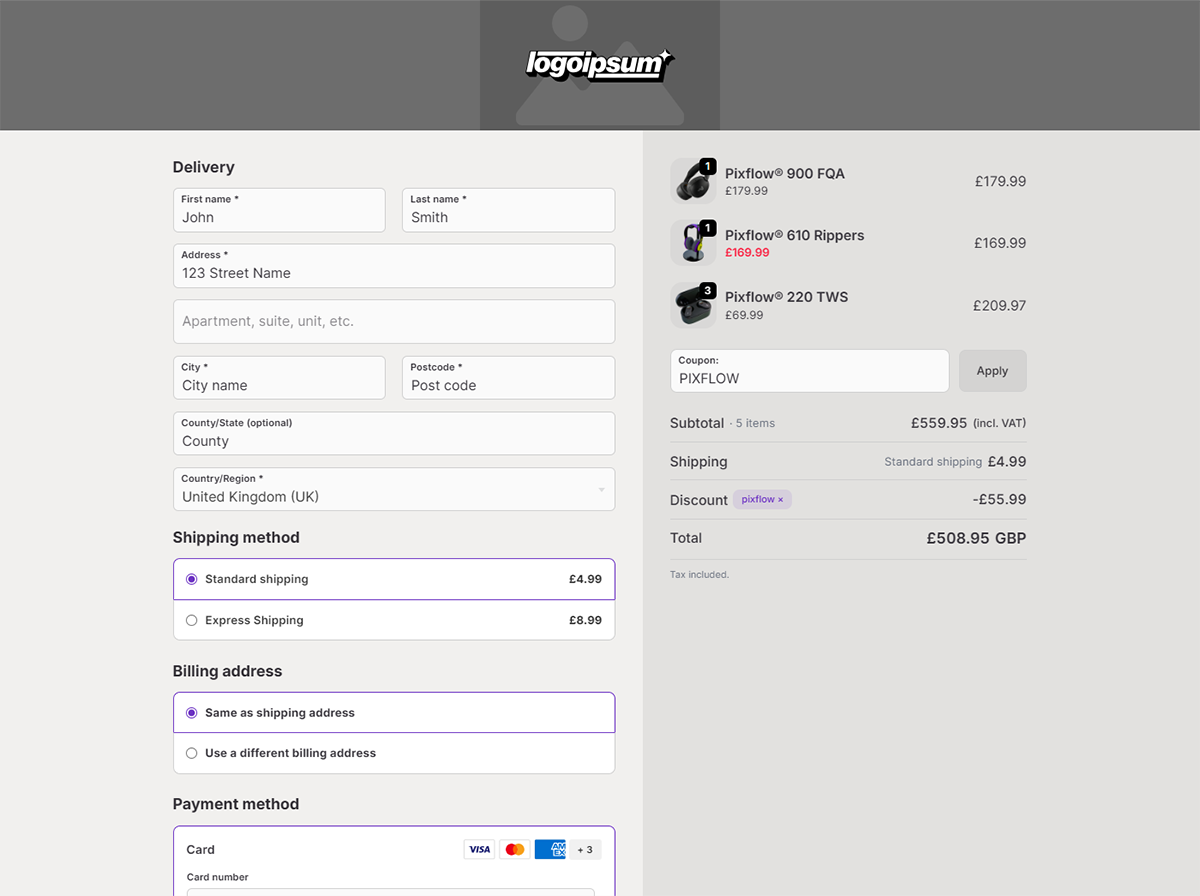
Block class name.checkout-1
Category
Checkout Pages
Last updated08 March, 2026

Follow these steps carefully to ensure your checkout functions correctly with your chosen payment method.
Main PHP Snippet
This is required.
Add it to your snippet manager or your theme’s functions.php file.
This snippet handles the core checkout functionality.
Main JavaScript Snippet
Choose the snippets that match the payment method you are using. Delete any snippets you aren’t using.
PHP Snippet → Add to snippet manager or functions.php.
JS/CSS → Can stay in your template or be added to your snippet manager.
PHP Snippet → Add to snippet manager or functions.php.
CSS → Can stay in your template or be added to your snippet manager.
Once any/all snippets are added to the snippet manager or functions.php:
You can remove any PHP/JS/CSS code from the template, as it’s now handled globally.
Only keep template snippets if you prefer them to stay in the page.
Make sure only the snippets for the payment method you’re using remain active.
Adding snippets in the snippet manager is safer and avoids losing changes when updating your theme.