
This document applies only when using the Pixflow framework.
If you are copying layouts using framework mapping (ACSS, Advanced Themer, Core Framework, or Raw CSS), you do not need to import Pixflow framework styles, and this document does not apply.
Pixflow layouts and components rely on a mandatory styling framework.
This framework must be imported correctly for layouts and components to function and display as intended.
This document explains how to import and update Pixflow styles using three supported framework methods:
- Vanilla Bricks (Style Manager)
- Core Framework Plugin
- Advanced Themer
Each method has different import mechanics, but the requirement is the same:
The Pixflow framework is not optional. All required files must be imported.
Global Rule (Framework-Specific Requirements)
The handling of the Main Pixflow Theme Styles depends on the framework method used.
Vanilla Bricks & Core Framework
When using Vanilla Bricks or Core Framework:
The Main Pixflow Theme Styles JSON file must be imported via the Bricks Style Manager and be active.
Pixflow layouts and components are built with the assumption that this Theme Style exists.
If it is missing or inactive, styling issues will occur that cannot be fixed locally.
Advanced Themer
When using Advanced Themer:
- The import process applies Theme Styles automatically
- The Main Pixflow Theme Styles are embedded inside the Advanced Themer JSON
- No separate Theme Styles import via the Style Manager is required
Before You Start (Mandatory)
Before importing or updating any Pixflow framework files:
- Export and save a backup of your existing setup
- Do not overwrite live projects without a rollback option
This applies to Theme Styles, Variables, Classes, and Colour Palettes.
Framework Method 1: Vanilla Bricks (Style Manager)
Important Notes
All imports for the Vanilla Bricks framework are handled entirely inside the Bricks Style Manager.
Files Provided
For this method, Pixflow supplies:
- 1 × Main Pixflow Theme Styles JSON
- 1 × Classes JSON
- 1 × Variables JSON
- 4 × Colour Scheme JSON files
All files are required.
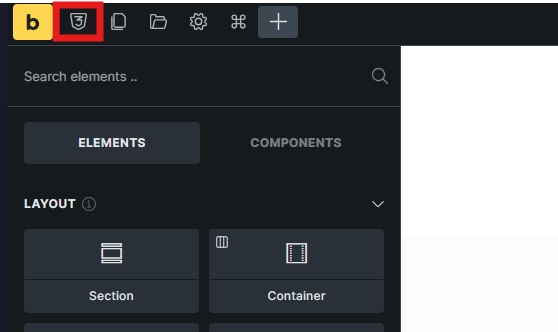
Accessing the Style Manager
You can open the Style Manager in either of the following ways:
- Open the Bricks Builder editor and click the CSS3 icon
- Use the keyboard shortcut CMD / CTRL + .
Importing Theme Styles (Mandatory)
- Open the Style Manager
- Click the Theme Styles tab
- Click Import
- Drag and drop the Main Pixflow Theme Styles JSON file
- Ensure the Pixflow Theme Style is active
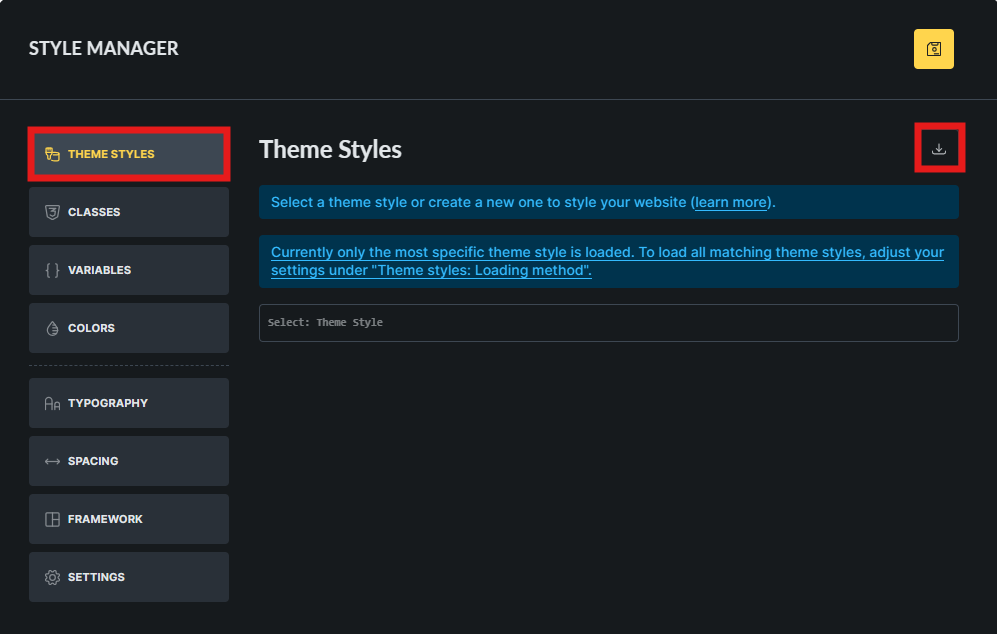
This step is required for all Pixflow layouts and components.
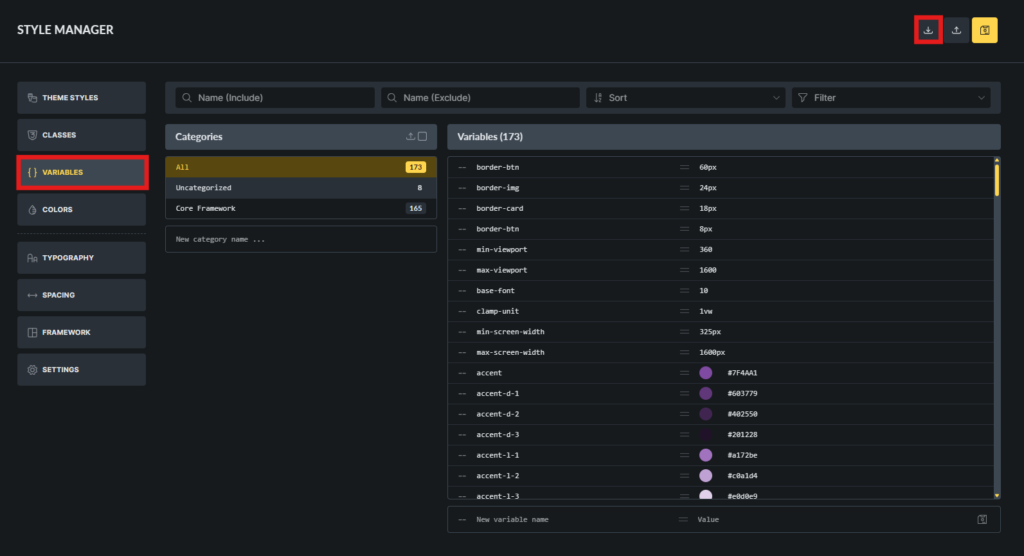
Importing Global Variables
- In the Style Manager, click the Variables tab
- Click Import at the top
- In the Import popup, drag and drop the Pixflow Variables JSON file
- Confirm the import
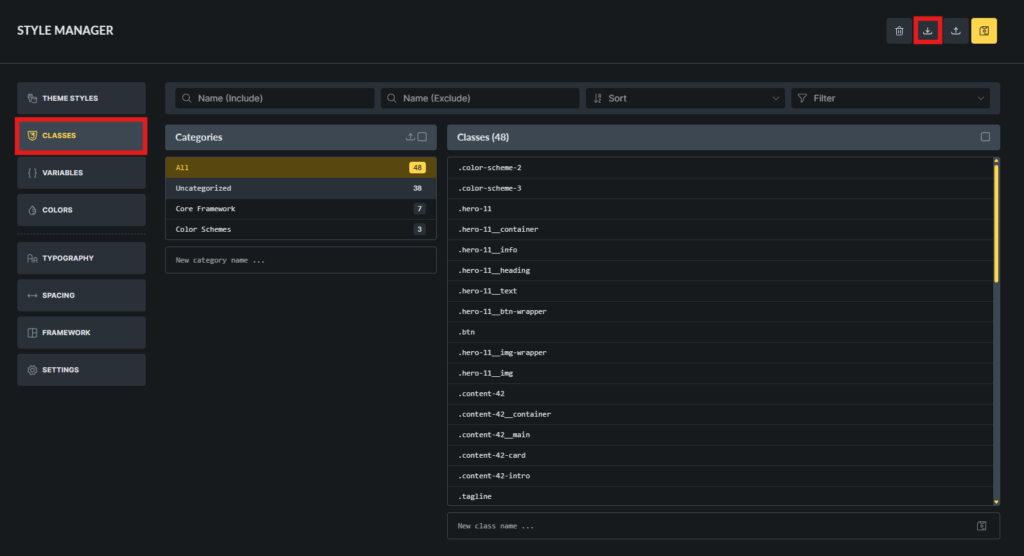
Importing Global Classes
- In the Style Manager, click the Classes tab
- Click Import at the top
- In the Import popup, drag and drop the Pixflow Classes JSON file
- Confirm the import
Importing Colour Schemes
- Click the Colors tab to open the Color Manager
- Click Import (Color palette)
- Import all provided Pixflow Colour Scheme JSON files
- Confirm that all palettes appear after import
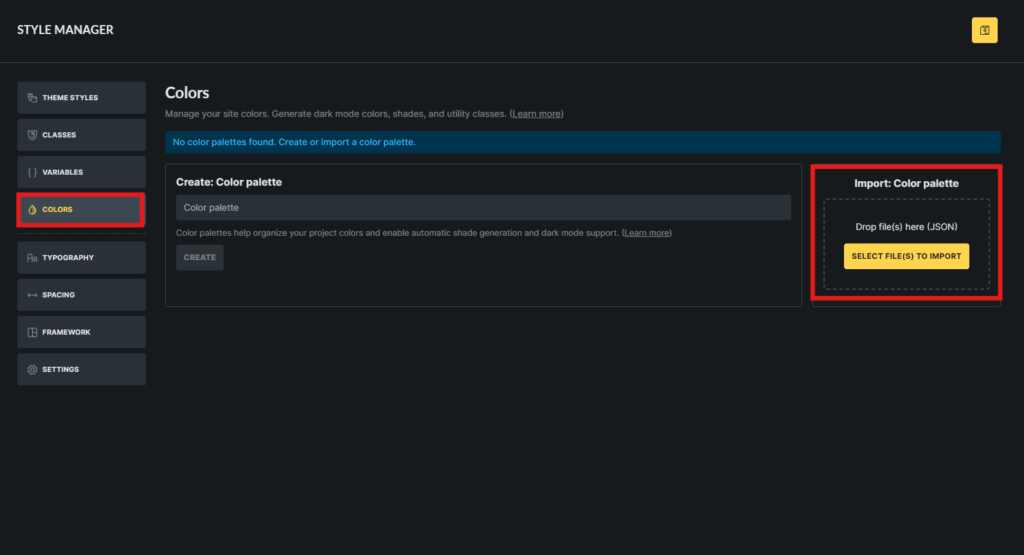
These colour schemes are required for Pixflow’s colour system to function correctly.
Framework Method 2: Core Framework Plugin
The Core Framework method imports most of the Pixflow system automatically, but it does not replace the requirement to import the Main Pixflow Theme Styles via the Style Manager.
Both steps are required.
Files Provided
For this method, Pixflow supplies:
- 1 × Pixflow
.corefile - 1 × Main Pixflow Theme Styles JSON file
Step 1: Import the Core Framework (.core File)
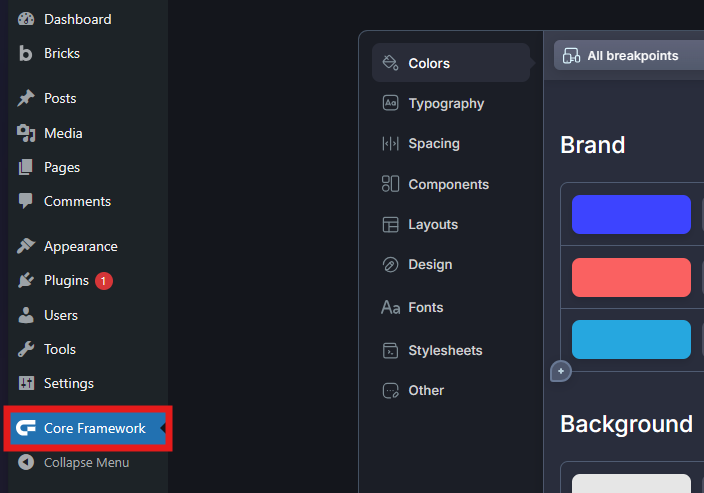
- Go to the Core Framework plugin
- Open the Manage Project page
- On the right-hand side, locate the Import section
- Upload the provided Pixflow
.corefile - Click Overwrite All
- Click Save Changes
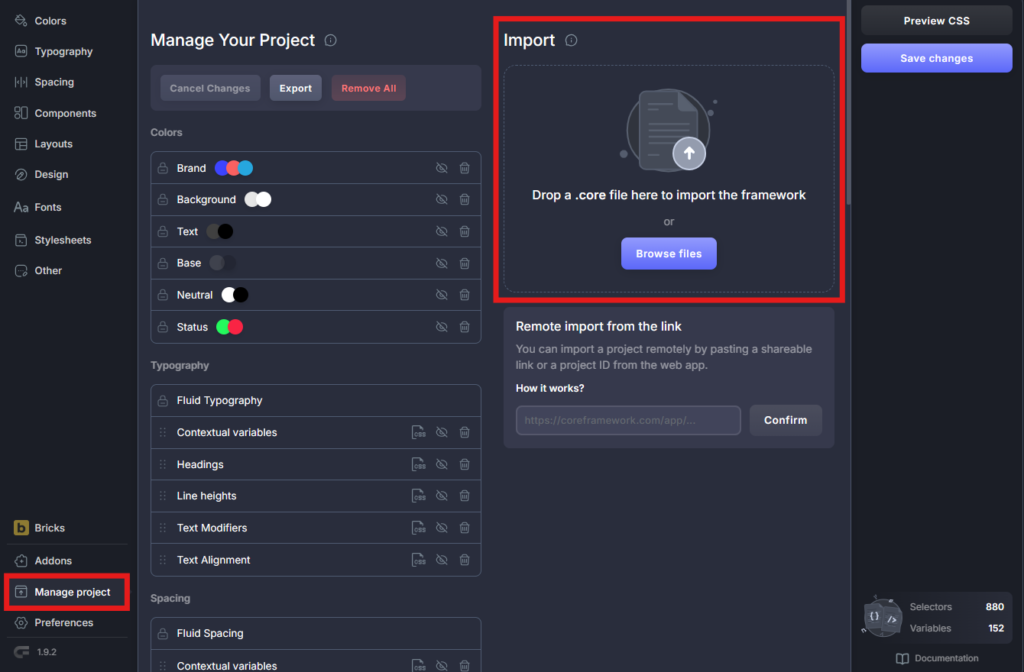
This imports:
- Global classes
- Global variables
- Colour schemes
- Core framework configuration
Step 2: Import the Main Pixflow Theme Styles (Mandatory)
The Core Framework does not overwrite or inject Bricks Theme Styles.
You must import them manually.
Accessing the Style Manager
- Open the Bricks Builder editor
- Click the CSS3 icon, or
- Use CMD / CTRL + .
Importing Theme Styles
- Open the Theme Styles tab
- Click Import
- Drag and drop the Main Pixflow Theme Styles JSON file
- Ensure the Pixflow Theme Style is active
Without this step, Pixflow layouts and components will not style correctly.
Core Framework Checklist
Before using Pixflow layouts or components, confirm:
- Core Framework
.corefile imported - Changes saved
- Pixflow Theme Styles JSON imported via Style Manager
- Pixflow Theme Style active
All four must be true.
Framework Method 3: Advanced Themer
This method uses Advanced Themer to apply Pixflow’s global styling configuration, which already includes the Pixflow Theme Styles embedded in the JSON.
Files Provided
- 1 × Advanced Themer JSON file
Step 1: Import via Advanced Themer
- Open the Advanced Themer plugin
- Go to Global Settings
- Click the Import / Export tab
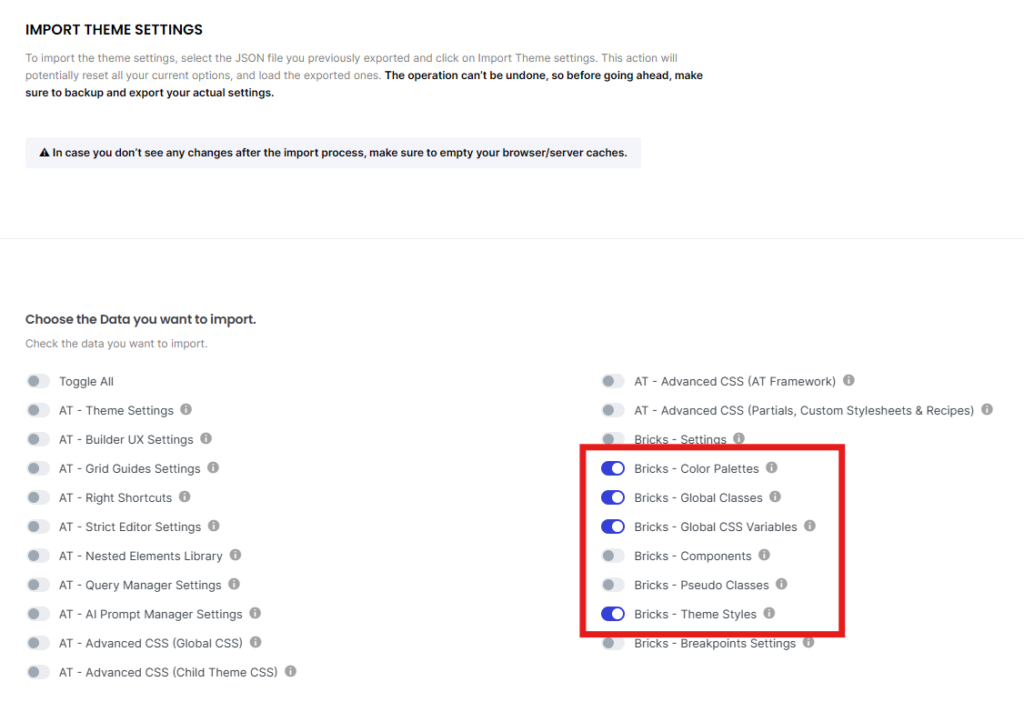
- Scroll to Import Theme Settings
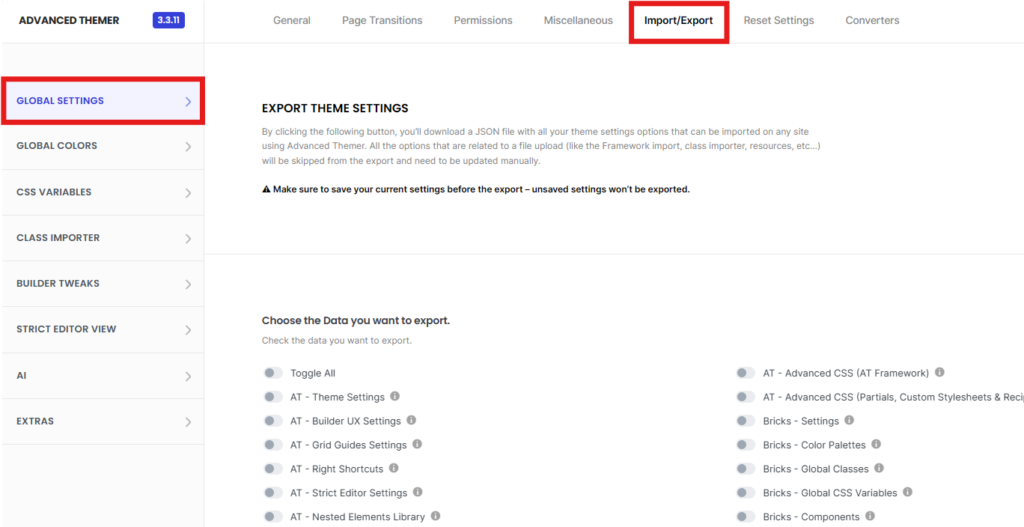
Enable ONLY These Toggles
- Bricks – Color Palettes
- Bricks – Global Classes
- Bricks – Global CSS Variables
- Bricks – Theme Styles
Completing the Import
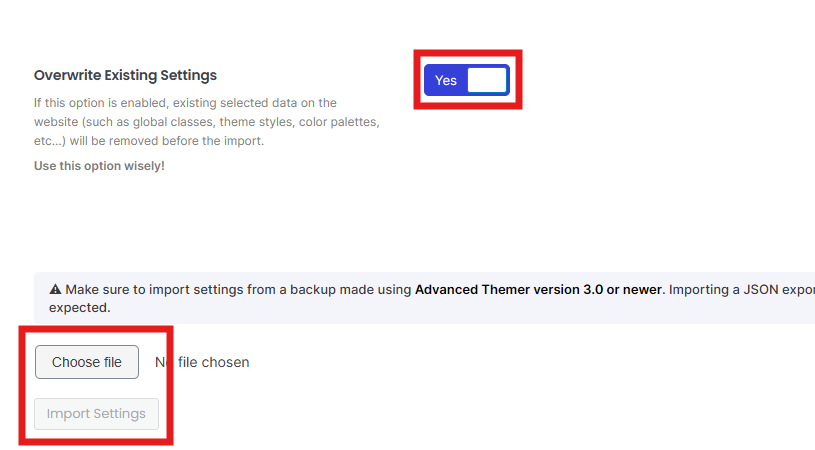
- Set Overwrite Existing Settings to YES.
- Click Choose file
- Select the provided Advanced Themer JSON file
- Run the import
- Save changes when complete
Updating an Existing Project
When Pixflow releases updates:
- Back up your current setup
- Review the Pixflow changelog
- Re-import using the same framework method
- Validate on staging before applying to live sites
Do not mix framework methods within a single project.
Mandatory Reminders
- Pixflow Theme Styles are required infrastructure
- Layouts and components assume they exist
- Missing imports will cause visual and structural issues
- Do not attempt to recreate Pixflow styles manually
- Always save changes after importing
Summary
- Pixflow framework styles are mandatory
- Three supported framework methods are available
- The Main Pixflow Theme Styles JSON must always be imported via the Style Manager
- Always back up before importing or updating
- Follow the correct method for your chosen framework
When imported correctly, Pixflow layouts and components remain predictable, scalable, and stable across all projects.